
It always happens at the worst possible moment. You are just about to snap a photo of a beautiful sunset, record a grandchild’s first steps, or download a movie for a flight, and a dreaded message pops up: “Storage Full.”
Over the years, our phones collect thousands of photos, dozens of unused apps, and countless old text messages. Before you panic and think you need to buy a brand new phone, try these simple digital housecleaning tips. Today, we are going to show you how to find what is hogging your phone’s space and how to clear it out!
Step 1: Find the Space Hogs 🐷
Before you start deleting things at random, your phone can actually show you exactly what is taking up the most storage. Usually, it comes down to a few big culprits: photos, videos, or old apps.
For iPhone (iOS):
- Open the Settings app.
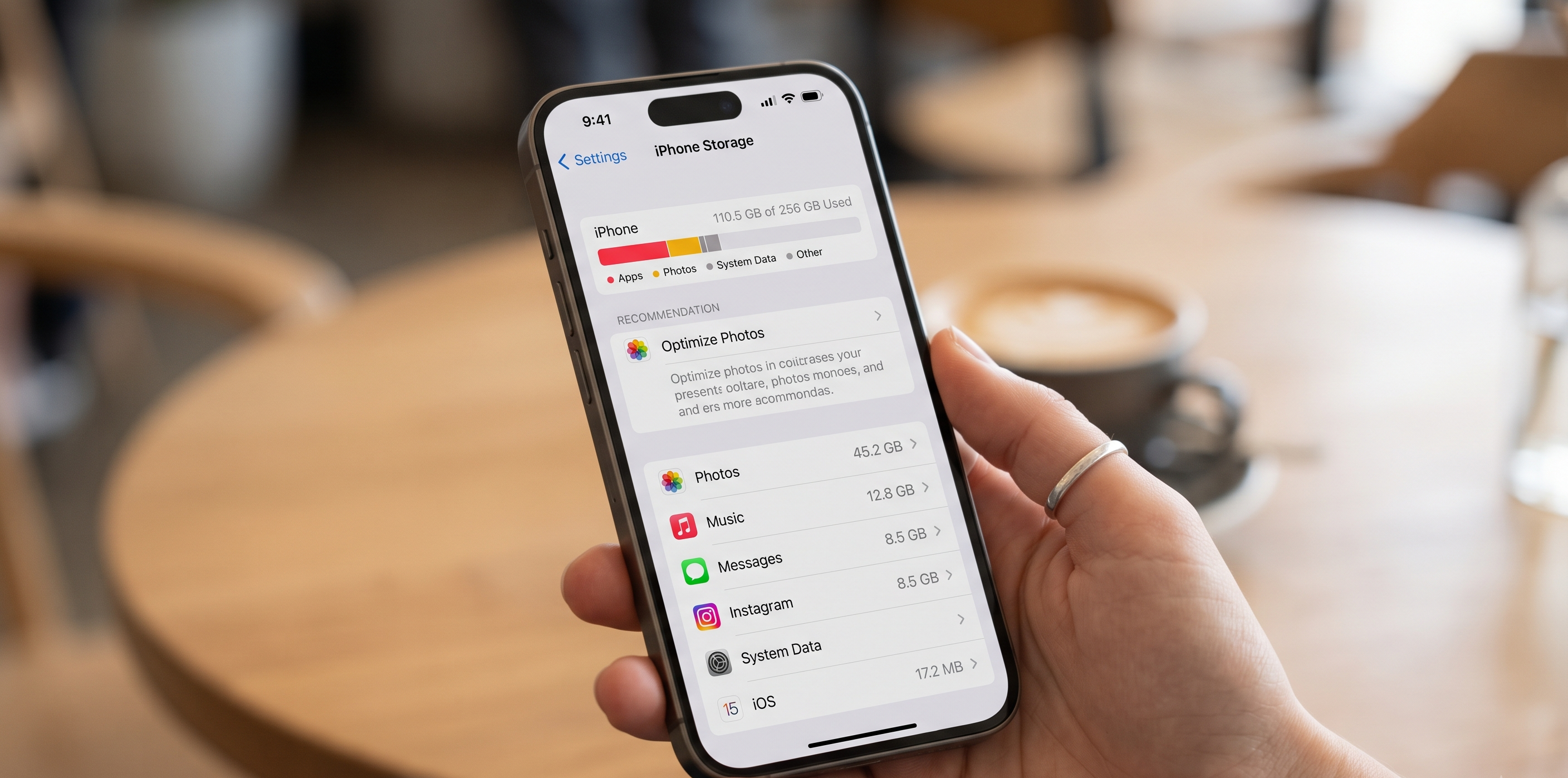
- Tap General, then tap iPhone Storage.
- You will see a colorful bar chart at the top showing what is eating up your space, followed by a list of your apps ordered from largest to smallest. You may also see some “Recommendations” your phone has.
For Android:
- Open the Settings app.
- Tap Storage (on some phones, this is under Battery and device care or Device care).
- Here, you will see a breakdown of your files, apps, and media, showing exactly where your storage has gone.
Step 2: Tackle the Photos and Videos 📸
Videos and high-resolution photos are usually the biggest space hogs on any device.
-
The iPhone Fix: Apple has a great built-in space saver. Go to Settings > [Your Name] > iCloud > Photos. Make sure Sync this iPhone is turned on, and then select Optimize iPhone Storage. This keeps full-resolution photos in the cloud and smaller, space-saving versions on your actual phone.
-
The Android Fix: If you use Google Photos, there is a magic button! Open the Google Photos app, tap your profile picture in the top right corner, and select Free up space. The app will safely delete photos from your physical phone only if they are already safely backed up to your Google Cloud.
-
Delete Old Videos: A 5-minute video takes up more space than 100 photos! Scroll through your camera roll and delete any old, blurry, or unnecessary videos you no longer need.
Step 3: App Spring Cleaning 🧹
We all download apps to use one time—like a parking app for a specific city or a game we got bored of.
-
The iPhone “Offload” Trick: If you don’t want to permanently delete an app but need space, you can “Offload” it. Go back to your iPhone Storage screen, tap an app you rarely use, and select Offload App. This deletes the app to save space but keeps all your saved data and login info for the next time you download it!
-
Android Cache Clearing: Sometimes Android apps hoard temporary files called a “cache.” Go to Settings > Apps, tap on a heavily used app (like Facebook or your web browser), tap Storage, and hit Clear Cache at the bottom. This can instantly free up a surprising amount of room!
-
The Golden Rule: If you haven’t opened an app in the last six months, delete it. You can always download it again later!
Step 4: Text Message Cleanup 💬
You might not realize it, but every time someone texts you a funny video or a picture of their dog, it saves to your phone’s storage. After a few years, those text messages can take up lots of space!
-
Auto-Delete on iPhone: Go to Settings > Apps > Messages > Keep Messages. Change it from “Forever” to “1 Year.” Your iPhone will automatically delete texts older than that timeframe, clearing out tons of old attachments.
-
Clear Large Attachments: On both iPhone and Android, you can go into your storage settings, tap on your Messages app, and find an option to review and delete “Large Attachments.” This lets you quickly delete old videos sent via text without deleting the conversation itself.
Reclaiming your phone’s storage can make your device run faster, extend your battery life, and give you peace of mind the next time you want to capture a special moment.
If you are nervous about deleting the wrong thing, or want help backing up your photos to the cloud before you start cleaning, our Sharks are always here to help!