
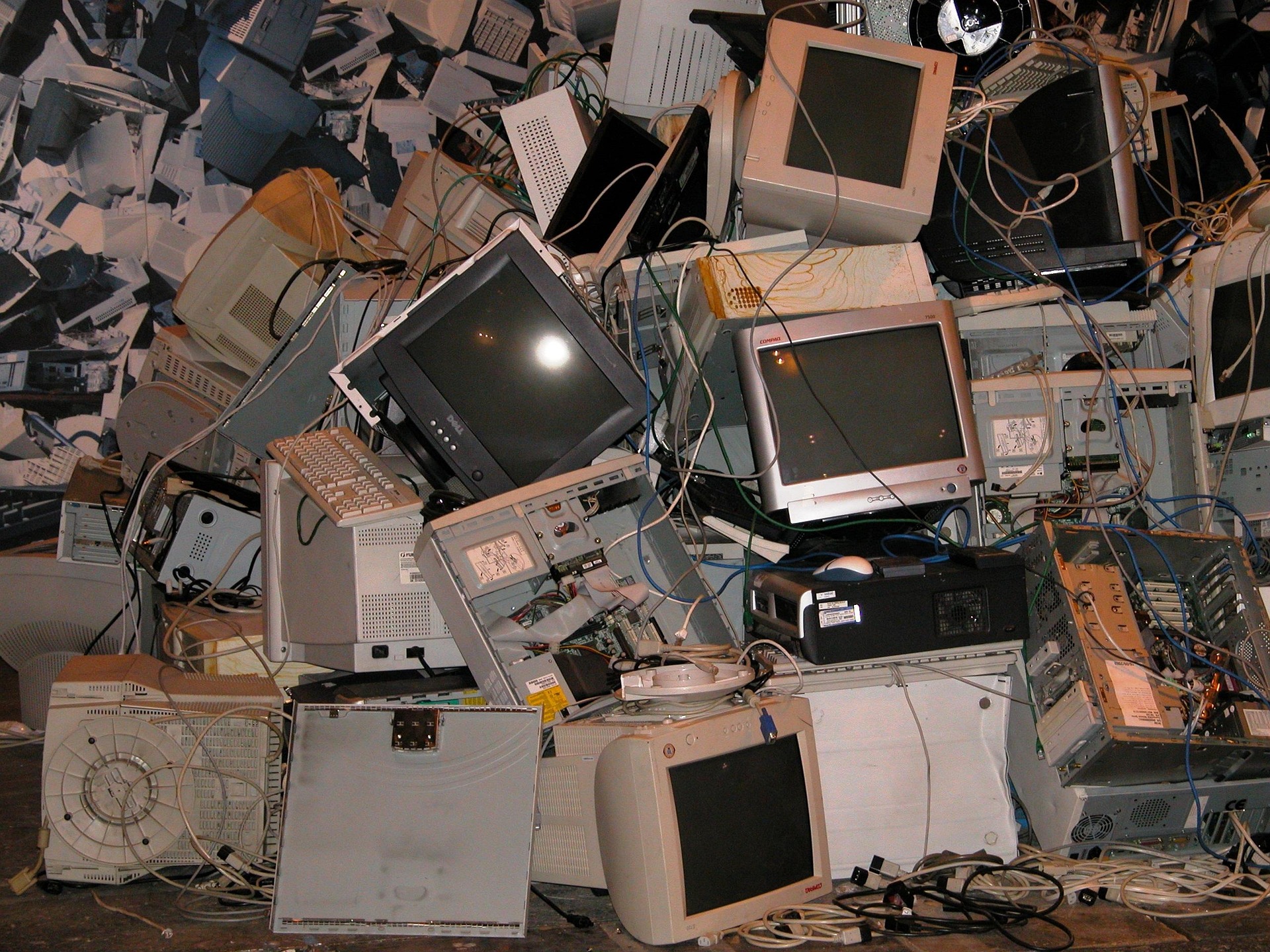
We all have it—that one drawer or box in the closet filled with old flip phones, tangled charging cords, and tablets from five years ago. It’s the “tech graveyard.”
Whether you’re upgrading to a new phone or finally cleaning out that closet, you shouldn’t just toss old electronics in the trash. Not only is it bad for the environment, but those devices still hold your personal information. Today, we will show you how to clear your data and find a responsible new home for your old gadgets!
Step 1: Save the Memories First 📸
Before you erase anything, make sure you aren’t accidentally deleting the only copy of those photos from the 2018 family reunion!
- Check the Cloud: Make sure your photos, contacts, and all other data have finished “syncing” to your iCloud or Google account.
- Manual Backup: To be extra careful, plug the device into your computer and transfer photos and other data manually. This is a great way to ensure nothing is lost!
- Sign Out: After backing up all your data, go into your settings and Sign Out of your Apple ID or Google Account. This “unties” the device from your name.
Step 2: The Great Wipe (Factory Reset) 🧼
This is the most important step. A “Factory Reset” essentially tells the device to forget everything it ever knew about you and return to the way it was the day it was made.
- For iPhone/iPad: Go to Settings > General > Transfer or Reset iPhone > Erase All Content and Settings. It will ask for your passcode one last time to confirm.
- For Android: Go to Settings > System > Reset options > Erase all data (factory reset).
- The Result: Once this is done, the device will restart and show a “Hello” or “Welcome” screen. This means your data is gone, and it’s safe to give away.
Step 3: Where Should It Go? 📍
Now that the device is clean, don’t let it sit on a shelf. There are three great ways to move it on:
- Trade It In: Stores like Best Buy, Apple, and Verizon often have trade-in programs. Even if the phone is old or has a cracked screen, they might give you a small gift card or a discount on your next monthly bill.
- Donate to a Cause: Many charities collect old devices. Some go to homeless shelters, and others are recycled to raise money for veterans’ programs. Search for “donate old electronics near me” to find charities in your area.
- Recycle Responsibly: If the device is truly broken and won’t turn on, take it to a dedicated e-waste recycler. Best Buy and Staples usually have bins near the front of the store where you can drop off old phones, tablets, and even those mystery charging cords for free.
Step 4: A Quick Safety Warning 🔋
Check your old devices for a “swollen” battery. If the back of the phone looks bulging or the screen is pushed out, do not plug it in and do not put it in the trash.
- The Danger: Old batteries can occasionally leak or catch fire if they are damaged or compressed in a garbage truck.
- What to Do: If you see a bulge, take it directly to a specialized battery recycler or your local hazardous waste center. They know exactly how to handle it safely!
Clearing out your old tech is a great way to simplify your life and help the planet at the same time. Plus, that junk drawer will finally have room for things you actually use!
If you’re worried about whether your data is truly deleted or would like help navigating the reset menus, our Sharks are experts at the “Great Wipe.” Schedule an appointment with us, and we’ll help you clear out that tech graveyard!