
Have you ever felt that stomach-dropping panic when you accidentally delete a precious photo, or when your computer makes a weird clicking sound and suddenly turns off?
Our devices hold our entire lives—family memories, important tax documents, and cherished contact lists. Technology can get lost, stolen, or simply die without warning. That is why creating a backup is crucial for protecting your digital life. Today, we’re going to show you how to set up an automatic safety net for all your gadgets!
What Exactly is a Backup? 🤔
A backup is simply a copy of your digital information stored somewhere else. The golden rule of technology is: If a file only exists in one place, it doesn’t really exist.
There are two main ways to back up your data:
- The Cloud: This is an invisible, highly secure storage locker on the internet. It automatically saves your data in the background, and you can access it from any device.
- A Physical Hard Drive: This is a small, physical device you plug into your computer to manually copy files.
We highly recommend using “The Cloud” for your phones and tablets because it’s automatic. Once you turn it on, you don’t have to babysit it!
Backing Up Your Phones & Tablets 📱
Mobile devices are the easiest to lose, which makes backing them up incredibly important.
For iPhone & iPad (Using iCloud):
- Open your Settings app (the grey gears icon).
- Tap your Name at the very top of the screen.
- Tap iCloud, then tap iCloud Backup.
- Make sure the switch for “Back Up This iPhone” is green.
Note: Apple offers a limited amount of free storage, but if you have thousands of photos, you might need to pay a small monthly fee (usually around $1) for extra space.
For Android Devices (Using Google One):
- Open your Settings app.
- Scroll down and tap Google, then select Backup.
- Tap the button that says Turn on or Back up now.
- This will save your apps, contacts, and settings to your Google account. (To make sure your photos are safe, open the Google Photos app and ensure “Backup” is turned on in the settings!)
Backing Up Your Computers 💻
Computers store our most sensitive files, so setting up a safety net here is crucial.
For Mac Computers (macOS):
- The Cloud Route: Go to System Settings > Apple ID > iCloud and turn on “iCloud Drive.” This will automatically sync your Desktop and Documents folders to the cloud.
- Note: This will sync your main folders (Desktop, Documents, etc.) but will not back up every file on your computer. There are other methods to do a complete backup, but this generally covers 95+% of the important files.
- The Hard Drive Route: Apple has a built-in feature called Time Machine. Just plug an external hard drive into your Mac, and a pop-up will ask if you want to use it for Time Machine. Say yes, and your Mac will take care of the rest automatically!
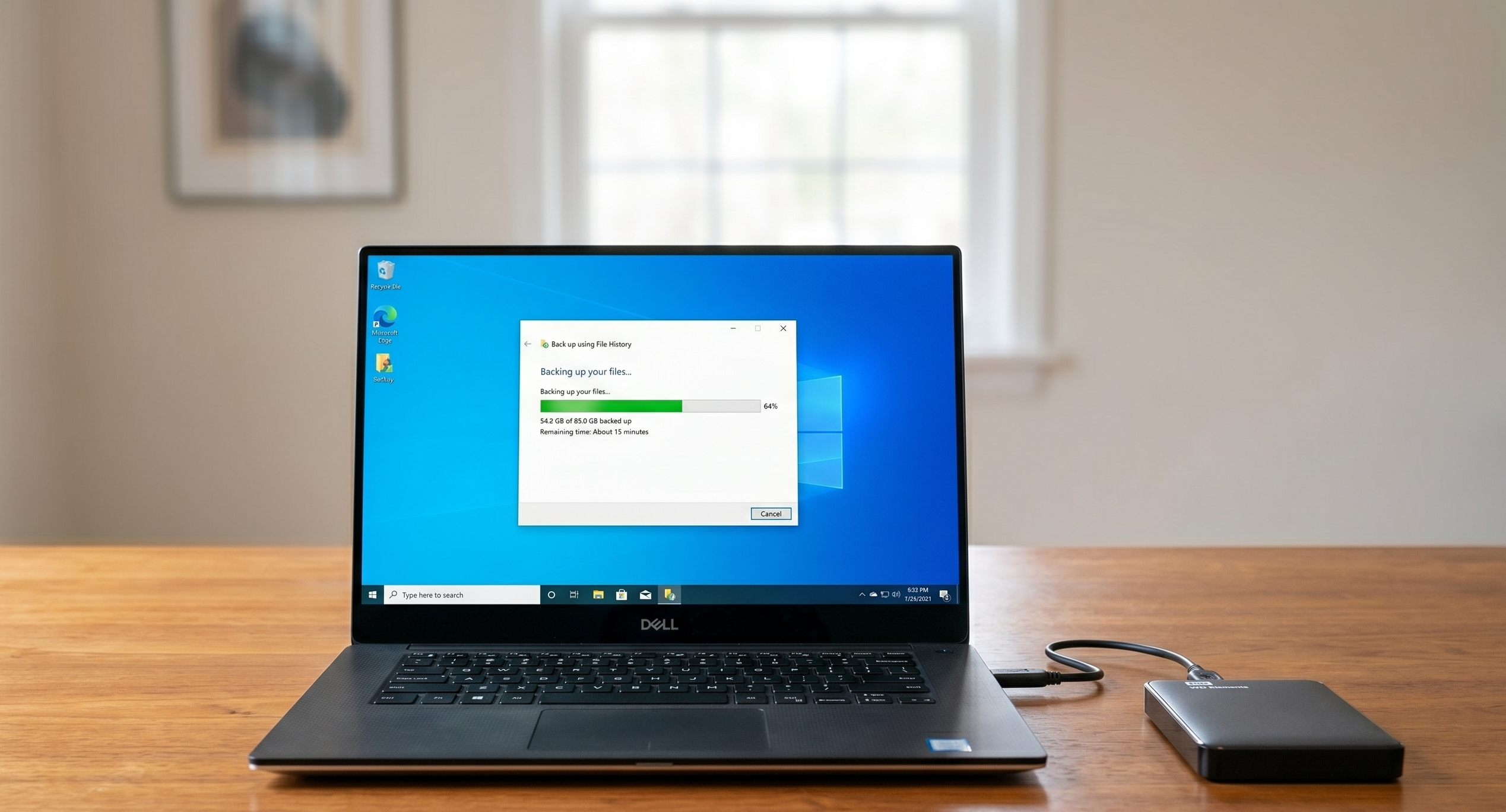
For Windows PCs (Windows 10 & 11):
- The Cloud Route: Microsoft uses a service called OneDrive. Click the little cloud icon near the clock in the bottom right corner of your screen, sign in with your Microsoft account, and tell it to sync your Desktop, Documents, and Pictures.
Note: This will sync your main folders (Desktop, Documents, etc.) but will not back up every file on your computer. There are other methods to do a complete backup, but this generally covers 95+% of the important files. - The Hard Drive Route: Plug in an external drive, go to the Start Menu > Settings > Update & Security > Backup. Click “Add a drive” and select your external hard drive to start automatically saving copies of your files.
The Secret to Success: Set It and Forget It ⏳
The biggest mistake people make with backups is trying to do them manually. We all have busy lives, and we will inevitably forget!
The best backup strategy is an automatic one. Whether you are using iCloud, Google Drive, OneDrive, or Time Machine, take 10 minutes today to enable automatic backup settings. Your device will quietly do all the hard work in the background while you sleep, ensuring that your memories are always safe, no matter what happens to your tech.
If the idea of managing cloud storage feels overwhelming, or if you want help picking out the right backup option for your device, our Sharks are ready to dive in! Schedule an appointment with us, and we’ll make sure your digital life is fully protected.