
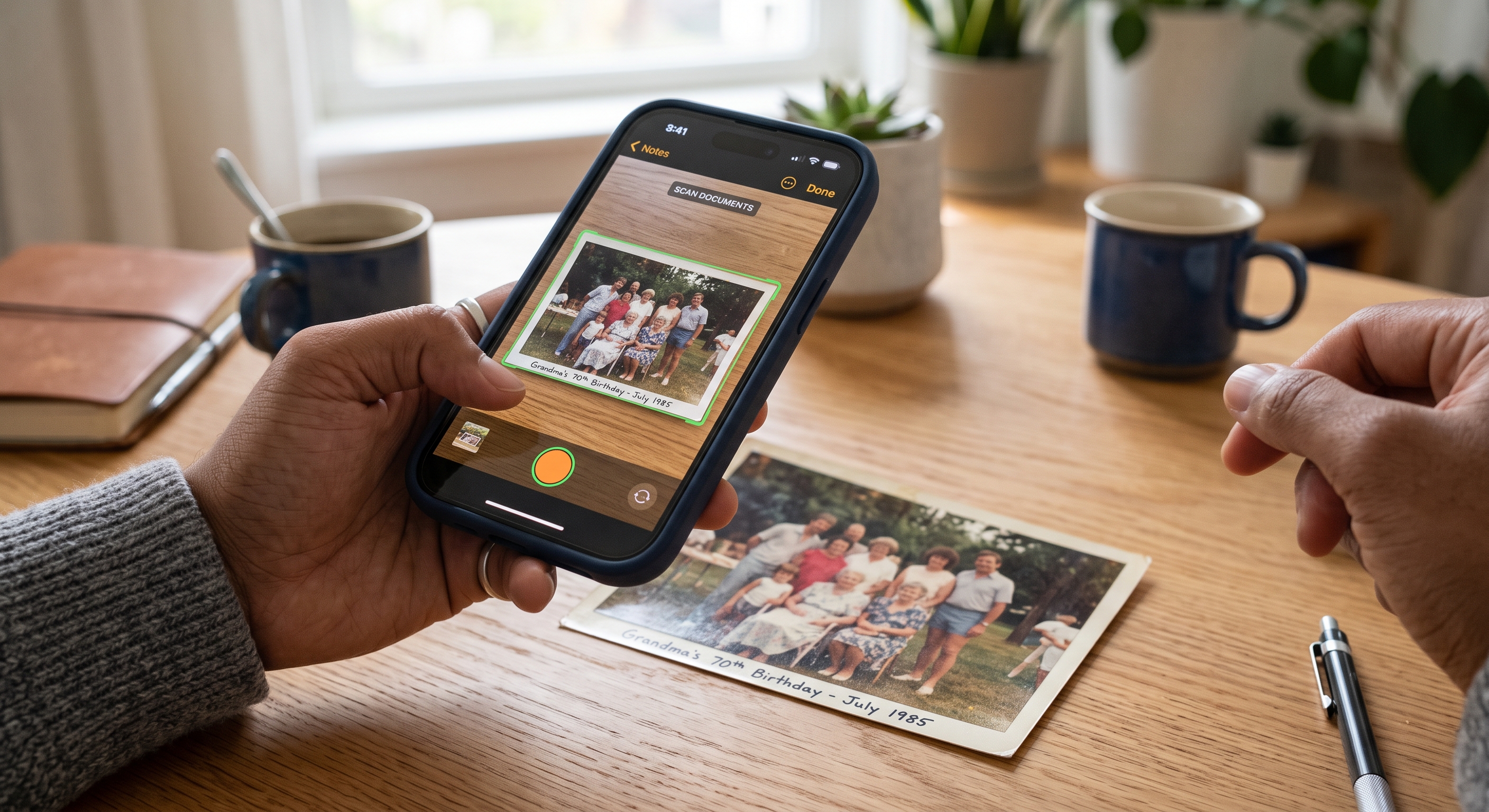
Have you ever tried to take a picture of a medical bill, an ID card, or a receipt to send to someone, only to realize the photo is blurry, covered in shadows, or includes half of your kitchen table in the background?
Dealing with old, finicky desktop printers and scanners can be incredibly frustrating. But what if we told you there is a high-quality scanner already built right into the phone you are holding? Today, we’re going to show you a simple “magic trick” that will save you time and make sending important documents a breeze!
A Photo vs. A Scan: What’s the Difference? 🤔
You might be wondering, “Can’t I just take a regular photo of the paper?” You can, but a digital scan is much better.
When you use your phone’s scanning feature, it uses artificial intelligence to automatically find the edges of your paper and crop out your countertop. It flattens the image, removes weird shadows, and turns the background bright white so the text is crisp and perfectly legible. Best of all, it packages it into a professional “PDF” file, which is exactly what doctors, accountants, and insurance companies prefer to receive!
How to Scan on an iPhone or iPad 🍎
Apple has a brilliant document scanner hidden right inside the Notes app that you already have on your device.
- Open the Notes App: It looks like a little yellow notepad.
- Start a New Note: Tap the square icon with a pencil in the bottom right corner.
- Tap the Paperclip: Look for the paperclip icon on your screen and select Scan Documents.
- Hover and Hold: Hold your phone steadily over your document. The camera will highlight the paper in yellow, and in most cases, it will automatically snap the perfect picture for you!
- Save It: If you have multiple pages, just keep holding it over the next page. When you are done, tap the yellow checkmark in the top right corner.
How to Scan on an Android Phone 🤖
For Android users (like Samsung or Google Pixel), the best built-in scanner lives inside the Google Drive app.
- Open Google Drive: Look for the app icon shaped like a green, yellow, and blue triangle.
- Tap the Plus Sign: Tap the big “+” (New) button in the bottom right corner.
- Select Scan: Tap the Scan document button.
- Snap the Picture: Point your camera at the document and press the shutter button to take a photo.
- Let It Work Its Magic: Google will automatically crop the edges and clean up the text. (If it needs a little help, you can use the crop tool to adjust the borders). Tap Save when you’re happy with it!
Sharing Your New Document 📤
Now that you have a perfect, professional-looking digital copy, sending it is incredibly easy.
Open your newly scanned document and look for the Share button.
- On an iPhone, it is a square with an arrow pointing up.
- On Android, it looks like a sideways “V” connecting three dots.
Tap that button, and you can instantly choose to send the PDF via an Email, a Text Message, or save it directly to your files. No stamps or fax machines required!
If you want to practice scanning a document together, or if you need help finding the Notes or Google Drive app on your specific phone, our Sharks are ready to assist. You can book an appointment with a Shark today!