
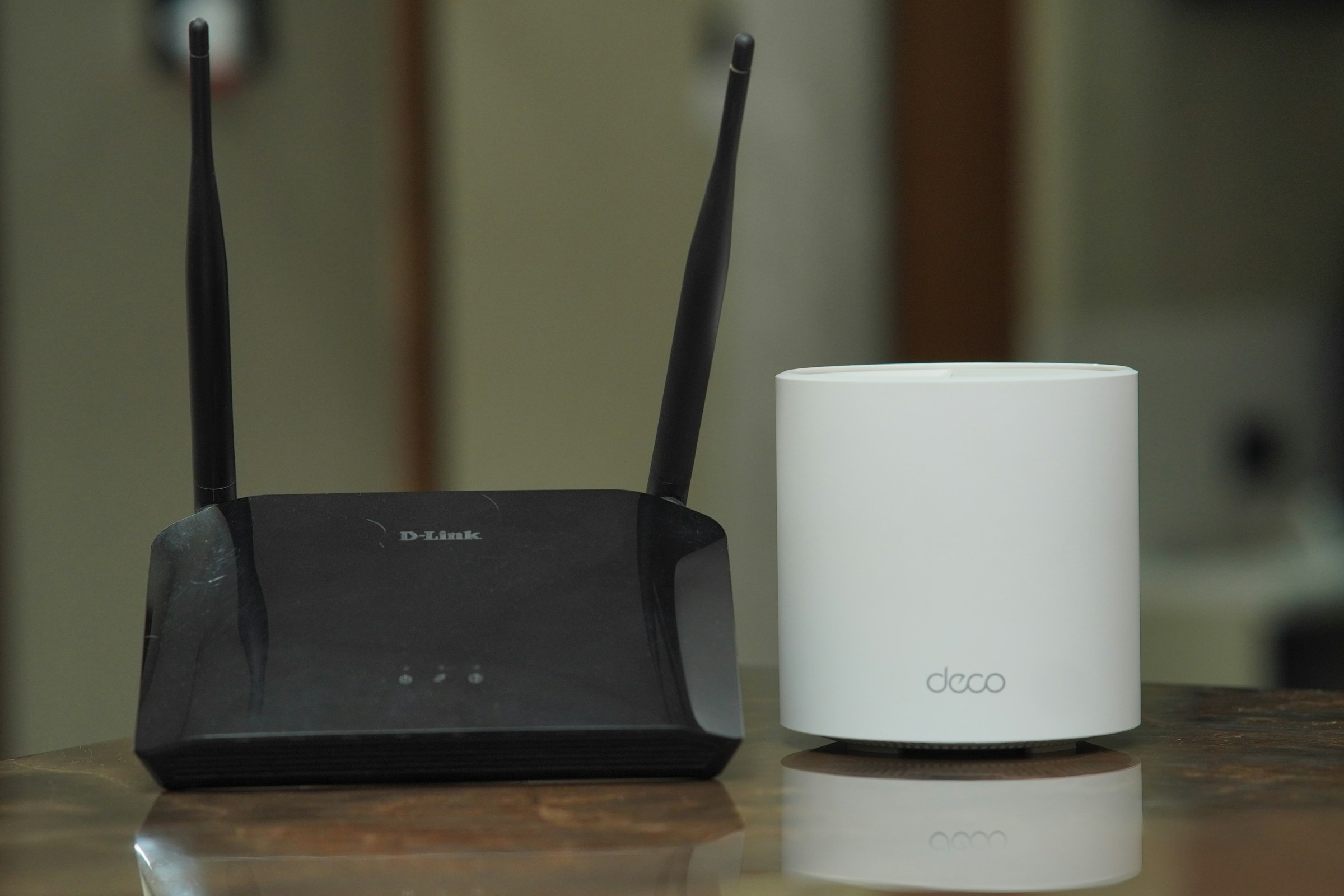
We have all been there: you are right in the middle of a great movie, or about to hit “send” on an important email, and suddenly everything stops. Your screen freezes, a little wheel starts spinning, and you realize your Wi-Fi has stopped working.
When the internet goes down, it can feel like you are completely cut off from the world. But before you call your internet provider and sit on hold for an hour, there is a simple “magic trick” that often fixes the problem. Today, we are going to walk you through the ultimate Wi-Fi troubleshooting guide!
Step 1: Know Your Boxes 📦
To fix your internet, you first need to know what you are looking at. Most homes have either one or two flashing boxes sitting in a corner somewhere:
- The Modem: Think of this as the “front door” to your house. It brings the internet from the internet service provider into your home.
- The Router: Think of this as the “broadcaster.” It takes the internet from the modem and turns it into the invisible Wi-Fi signal that your phone, tablet, and TV connect to.
- The Combo Unit (Gateway): Many internet companies (like Comcast or AT&T) now give you just one tall box that does both jobs at the same time!
Step 2: The Golden Rule (And One Big Warning!) 🚨
The best way to fix a stubborn internet connection is to restart your equipment. This clears out any temporary digital “hiccups” and gives the boxes a fresh start. But before you touch anything, you need to know what NOT to press.
⚠️ THE PAPERCLIP WARNING: If you look closely at the back of your router, you might see a tiny hole labeled “Reset.” Never stick a pen or paperclip into this hole! This is a “Factory Reset” button. If you press it, it will completely erase your custom network name and your Wi-Fi password, and you will have to set up your entire home network from scratch.
Step 3: The Step-by-Step Fix 🛠️
To properly restart your internet (a process called “Power Cycling”), just follow these easy steps:
- Find the Power Cable
Look at the back of your router and modem (or your single combo box). Look for the power cord plugged into the wall outlet or the back of the machine. - Unplug It Completely
Simply pull the power cord out of the wall or the back of the box. The lights on the front of the machine should all instantly turn off. (If you have two boxes, unplug them both). - Wait the “Magic Minute”
This is the most important step! Wait at least 60 seconds before plugging it back in. This gives the electronics enough time to completely drain any leftover power and clear their memory banks. Go grab a glass of water or stretch your legs! - Plug It Back In
Plug the power cord securely back into the wall or the box. - Be Patient (The 5-Minute Rule)
The lights on the front of the box will start blinking. It usually takes between 3 to 5 minutes for the modem to “talk” to your internet provider and for the Wi-Fi to start broadcasting again. Wait until the lights stay solid (usually green, blue, or white).
Step 4: Check Your Devices 📱
Once the lights on your router are steady, pick up your phone or tablet. Go to your Settings and tap Wi-Fi. Make sure you are reconnected to your home network, and try loading a web page!
Most Wi-Fi glitches can be solved with this simple “unplug, wait, and plug back in” routine. It is the oldest trick in the tech support book because it works!
If your Wi-Fi is constantly dropping out, if your home has “dead zones” where the signal won’t reach, or if you accidentally pressed that tiny reset button and need to start over, our Sharks are ready to dive in! You can book an appointment with a Shark today.