
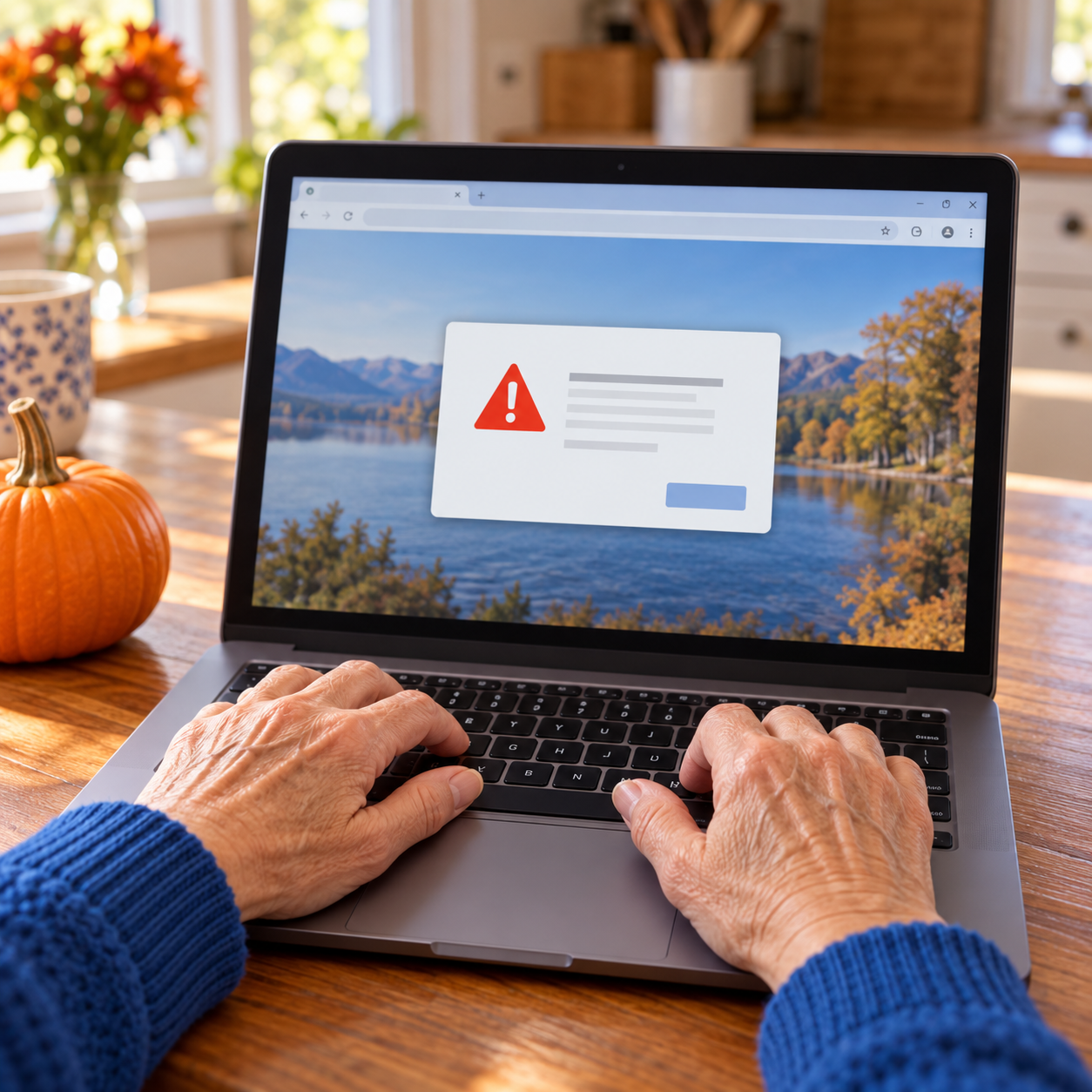
We’ve all been there. You’re online, and suddenly a warning fills your screen: “Your computer has a virus!” There might even be an alarm or a number to call. It is enough to give anyone a fright.
But before you reach for the phone, take a breath. That warning could be a scam in disguise! With Halloween around the corner, today we’re showing you how to spot these digital tricks.
What Is a Pop-Up, Anyway? 🤔
A pop-up is simply a small window or message that appears on your screen. Some are helpful, like a reminder about an appointment. Others are advertisements. And some are scams pretending to be security warnings.
Think of a fake warning as a stranger wearing a costume. It might look like it comes from Microsoft or Apple, but a familiar logo does not make it real. A scary message on a webpage does not prove that your computer has a virus!
Spotting the Tricks 🚨
These messages are designed to make you act before you have time to think. Here are three clues to watch for:
-
A Number to Call: The warning tells you to call “technical support” to remove a virus. Real security warnings will not ask you to call a phone number.
-
A Big Hurry: A loud alarm, a countdown, or a threat says you must act immediately.
-
A Stranger Wants Access: Someone asks you to download a “fix,” pay money, or let them control your computer.
The Simple Three-Step Plan 🛠️
You do not have to race that countdown. Just remember: pause, close, and check.
1. Pause Before You Click
Do not call the number, download anything, or press buttons inside the warning. If an alarm is making it hard to think, turn down your device’s volume.
2. Close the Browser and Restart
Your browser is the app you use to visit websites, like Chrome, Safari, or Edge. Close it using its usual close button, then restart your computer, phone, or tablet as you normally would.
If the browser will not close, restart the device using its usual restart option. If you are unsure how, ask a trusted friend, family member, or Shark to help.
3. Check With Someone You Trust
If you are still worried, ask a trusted friend or family member for help, or contact Support Sharks through our usual website or contact information. Use a number you already know—not the one in the warning.
To check your computer for harmful software, ask your helper to run a virus scan. This is a check performed by the security program already installed on your computer. Your helper should open that program from your computer’s list of apps and choose its scan option. Do not use a link or download offered by the pop-up. If you do not know which security program you have, a Shark can help you find it and run the check.
Keep That Warning From Coming Back 💻
When you open your browser again, it may ask to “restore” your previous tabs or pages. Choose No or decline that offer so the scary page does not reopen. If the warning returns, close the browser again and ask your trusted helper or Support Shark for help.
Already Clicked or Called? 🛟
Do not be embarrassed. These messages are made to fool people, and the next step matters more than the last one.
End the call. If someone is controlling your computer, disconnect it from Wi-Fi or unplug its internet cable, then contact a trusted helper promptly. If you shared a password, change it from a different, trusted device, including anywhere you reused it.
If you paid or shared payment details, contact your bank or credit card company immediately using the number on your card. You can also report the scam at ReportFraud.ftc.gov.
Let the pumpkins do the scaring this Halloween! A little pause can help keep a digital trick from spoiling your day.
If you would like a hand checking a suspicious message, practicing these steps, or making sure your device is safe, our Sharks are ready to dive in! You can book an appointment with a Shark today using the button below.