
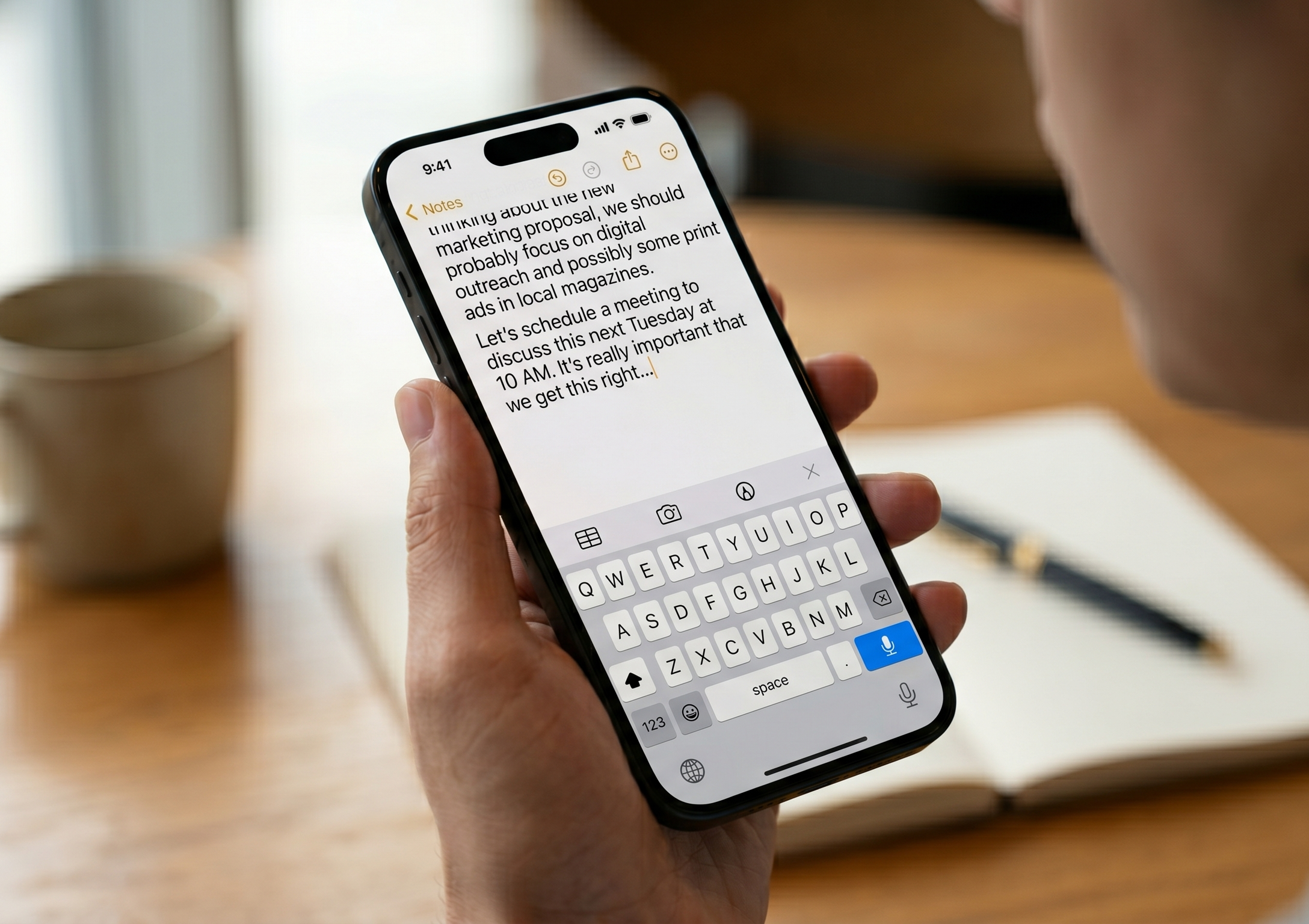
Have you ever found yourself squinting at the tiny keyboard on your phone, trying to peck out a long text message? Or maybe you have a great story to tell but don’t feel like typing it all out?
Today, we’re talking about Dictation (also known as Speech-to-Text). It’s a built-in feature that lets you talk to your phone while it types for you. It is fast, accurate, and—best of all—it lets you keep your hands free!
Talking to Your iPhone or iPad 🍎
Apple makes it very easy to turn your voice into text. You will see the option almost anywhere you can type.
- Find the Microphone: When your keyboard is on the screen, look for a small Microphone icon. On newer iPhones, it’s usually in the very bottom-right corner of the screen.
- Tap and Talk: Tap the microphone, wait for a quick “ding” or for the line to start moving, and then just start speaking. You’ll see the words appear on the screen as you say them!
- How to Stop: When you’re finished, tap the microphone icon again to end dictation.
Voice Typing on Android Phones 🤖
Android phones (like Samsung or Google Pixel) use Google’s powerful voice recognition to make typing a breeze.
- Locate the Mic: Open your keyboard and look for the Microphone icon. It’s usually located in the top-right corner of the keyboard area or sometimes hidden behind a small arrow.
- Speak Clearly: Tap the icon. The phone will usually say “Speak now” or show a glowing circle. Say your message at a normal volume.
- Ending Dictation: When you are done, just tap the microphone again to stop the recording.
The Secret to Perfect Punctuation ✍️
Your phone is a great listener, but it doesn’t always know when you’ve finished a sentence unless you tell it. The trick is to say the punctuation out loud as you speak!
- “Period”: Say the word “period” to end a sentence.
- “Comma”: Say “comma” to add a comma.
- “Question Mark”: Just say the words “question mark” at the end of the sentence.
- “New Paragraph”: This is a pro tip! Say “new paragraph,” and the phone will jump down to a fresh line for you.
Why You Will Love Using Your Voice 🌟
- Speed: Most people can speak much faster than they can type. You can finish a long email in seconds!
- Better Accuracy: If you struggle with hitting multiple keys at once or clicking unwanted keys, dictation removes that frustration entirely.
- Great for Notes: If you are at the grocery store and realize you need milk, just open your “Notes” app and dictate it quickly so you don’t forget.
- Accessibility: It’s a wonderful tool if your hands are feeling a bit tired or if you just want to give your eyes a break from the screen.
A Couple of Pro Tips 💡
- Minimize Background Noise: Dictation works best in a quiet room. If the TV is blaring, your phone might try to “type” what the news anchor is saying instead of you!
- Check the Results: Even the smartest phones make mistakes occasionally (they might hear “ice cream” when you said “I scream,” for example). Always give your message a quick read-through before you hit “Send.”
If you would like to practice “talking to your tech” or want help finding that elusive microphone icon on your specific phone, our Sharks are here to help!