
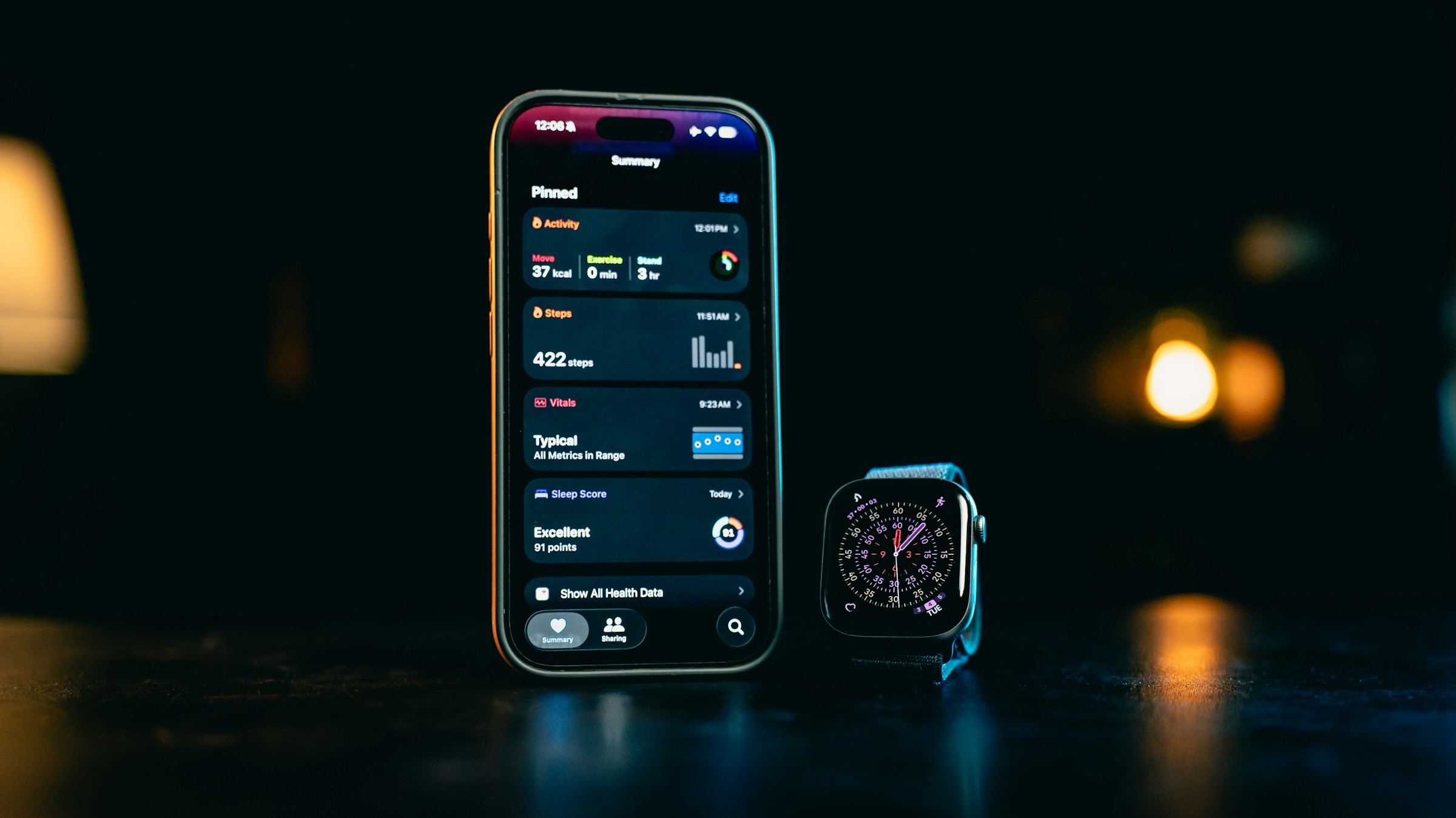
Did you know that your smartphone is not just for calls and games? It has powerful, built-in features that act like a personal wellness tracker! These apps can help you monitor your activity, track your sleep, and even hold important medical information safely.
Today, we’re going to look at the health apps already on your phone and show you how to start using them to better understand your well-being. It’s like getting a personal trainer and a medical organizer, all in one device!
What Are the Health Apps? 🤔
Every modern smartphone comes with a dedicated app for tracking and managing health data.
- iPhone users have the Health app (a white icon with a pink heart ❤️).
- Android users most often use the Google Fit app (a colorful heart icon) or the manufacturer’s own health app (like Samsung Health).
These apps automatically gather information (just by carrying your phone) and provide a centralized place for all your health data.
Tracking Your Activity and Movement 🚶♀️
One of the easiest things your phone does is track how much you move throughout the day. You don’t need a special smartwatch—just carry your phone in your pocket or bag!
What your phone tracks automatically:
- Steps Taken: How many steps you walk each day.
- Distance Covered: How far you’ve traveled.
- Flights Climbed: How many sets of stairs you go up.
- Active Minutes: How long you spend moving briskly or exercising.
How to view your activity:
- Open your Health or Google Fit app.
- Look for a section titled “Activity,” “Steps,” or “Move.”
- You can set simple daily goals (like 5,000 steps) and watch your progress throughout the day. Seeing your progress can be a great motivator to get up and take a walk! 👟
Organizing Essential Medical Information 🩺
This is arguably the most important feature, especially for emergencies. Both iPhone and Android allow you to create a secure file with vital medical details that can be accessed by first responders even if your phone is locked.
The “Medical ID” or “Medical Information” File:
- What to include:
- Emergency Contacts: The names and numbers of close family members and doctors.
- Medical Conditions: Any long-term medical conditions that first responders should know about.
- Allergies: Any severe drug or food allergies.
- Medications: A list of the medications you take.
- Why it’s helpful: This information can be vital in an emergency where you can not communicate. First responders know to look for this feature on a locked phone, which provides them with the critical information needed to administer care.
How to set it up:
- Open your Health or Google Fit app.
- Look for an option labeled “Medical ID,” “Emergency Info,” or “Personal Data.”
- Fill in the information carefully.
- IMPORTANT: Make sure the “Show When Locked” or “Make Visible on Lock Screen” setting is turned ON. Without this, first responders will not be able to access this information if your phone is locked.
Sleep, Hydration, and Wellness 😴
Beyond steps and medical data, these health apps can help you build better habits:
- Sleep Tracking: If you keep your phone near your bed, many apps can estimate how long and how well you slept. You can also set a regular “bedtime” schedule to encourage consistency.
- Hydration: You can manually log the water you drink throughout the day to ensure you stay properly hydrated.
- Mindfulness: The apps often link to guided meditation or relaxation exercises to help manage stress.
Quick Tips for Using Health Apps 🚨
- Be Patient: Don’t try to track everything at once! Start with just your steps and your Medical ID.
- Connect to Other Devices: If you use a device like an Apple Watch or a Fitbit, these health apps are where all that data is collected and displayed in aggregate.
- Privacy is Key: This data is kept private and secure on your device. Only you decide who sees it.
As you have seen, your smartphone is a powerful tool for your health and safety. Taking a few minutes to set up your Medical ID and check your steps can give you valuable insights and peace of mind!