
Have you ever been woken up at 2 AM by a random email notification, or lost your train of thought because your phone wouldn’t stop buzzing?
Our phones are great at keeping us connected, but they can also be terrible at letting us disconnect. Constant pings and vibrations can interrupt your sleep, break your concentration, and increase your stress. That is where a feature called Do Not Disturb comes in! Today, we’re going to show you how to silence the noise while making sure the people who matter most can still reach you.
What is Do Not Disturb? 🤔
Think of Do Not Disturb (often abbreviated as DND) as a digital “Do Not Enter” sign for your phone. When it is turned on, your phone will still receive texts, emails, and phone calls, but your screen won’t light up, and it won’t make a sound or vibrate.
The best part? You can schedule it to turn on automatically every night when you go to bed, or set it to run during your working hours.
Taming the Noise on iPhone (iOS) 🍎
Apple has expanded Do Not Disturb into a feature called Focus, which lets you create different profiles for Sleep, Work, and Personal time.
How to set up a basic schedule:
- Open Settings: Tap the Settings app and select Focus.
- Choose a Focus: Tap Do Not Disturb (or Sleep if you want to set up your bedtime routine).
- Set a Schedule: Tap Add Schedule (or Turn on Automatically). Here, you can pick the exact times and days of the week you want your phone to stay perfectly quiet.
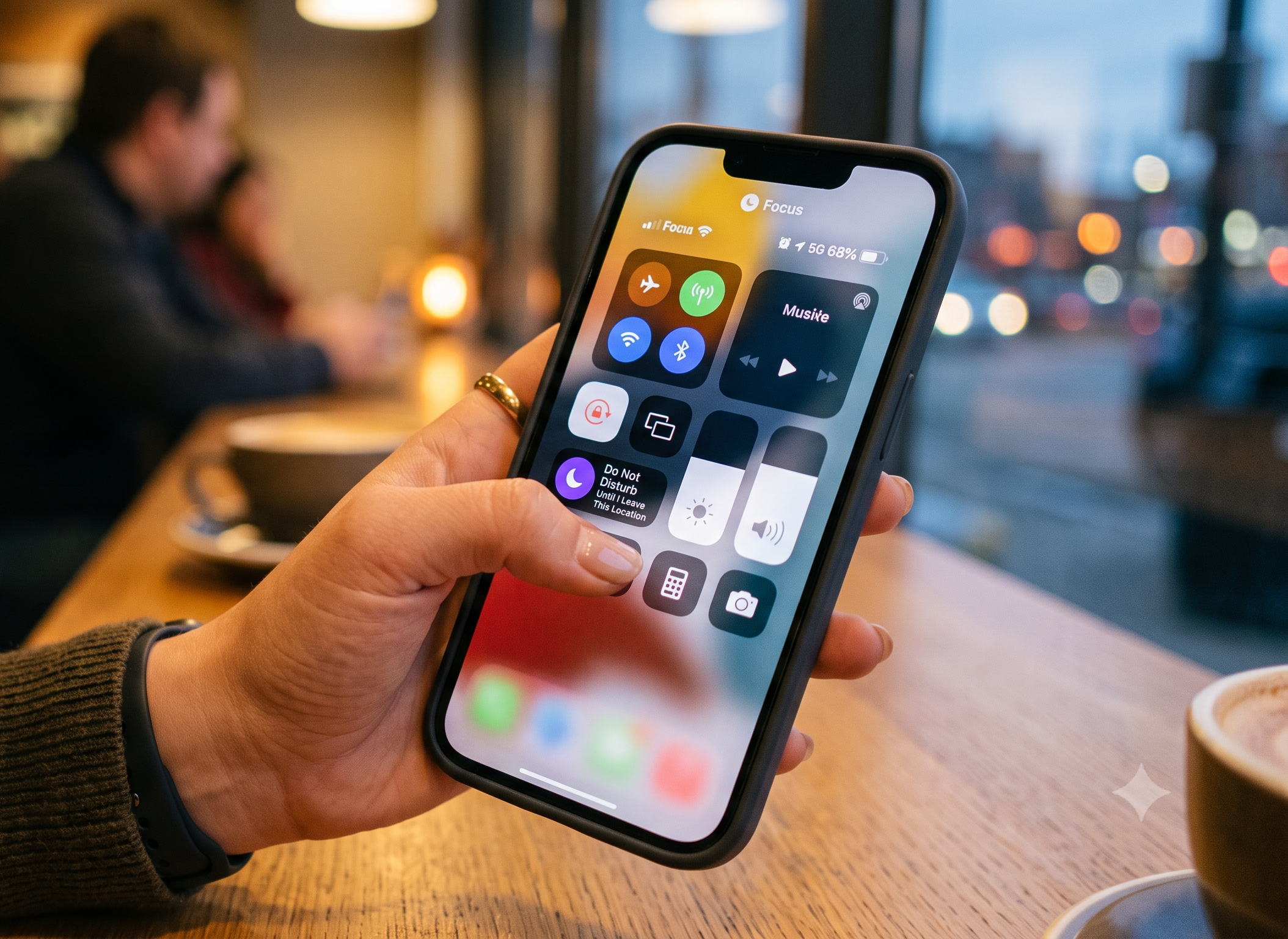
The Quick Turn-On: If you are walking into a movie theater and just need temporary silence, swipe down from the top-right corner of your screen to open the Control Center. Tap the word Focus (or the crescent moon icon) to turn Do Not Disturb on instantly.
Quieting Your Android 🤖
Android phones make it incredibly easy to set up rules so your phone knows exactly when it’s time to be quiet.
How to set up a basic schedule:
- Find the Menu: Open your Settings app, tap Sound & vibration (or Notifications on some models), and select Do Not Disturb.
- Create a Schedule: Look for a section called Schedules or Rules. Tap it to add a new schedule.
- Set the Time: You can create a “Sleeping” schedule that automatically mutes your phone from 10 PM to 7 AM every day, or a “Work” schedule for your office hours.
The Quick Turn-On: Need immediate silence? Swipe down from the very top of your screen to open your Quick Settings panel. Look for the circle with a minus sign or a crescent moon labeled Do Not Disturb and tap it.
The Secret Feature: Setting Exceptions 🌟
The biggest reason people hesitate to use Do Not Disturb is the fear of missing an emergency call from a family member. Luckily, your phone is smart enough to let the VIPs through!
Both iPhones and Androids have a section in their Do Not Disturb settings called Exceptions or People.
- Allow Favorites: You can tell your phone to always ring out loud if a call comes from someone on your “Favorites” list or a specific group of contacts.
- Repeated Calls: Turn on the setting for “Repeated Calls.” If anyone calls you twice within a 3-minute window, your phone will assume it is an emergency and let the second call ring out loud.
Setting up a Do Not Disturb schedule is one of the best things you can do for your peace of mind. Let your phone worry about the notifications while you get a good night’s rest!
If you’d like a hand setting up your Do Not Disturb schedule or making sure your emergency contacts can still get through, our Sharks are always here to help!