
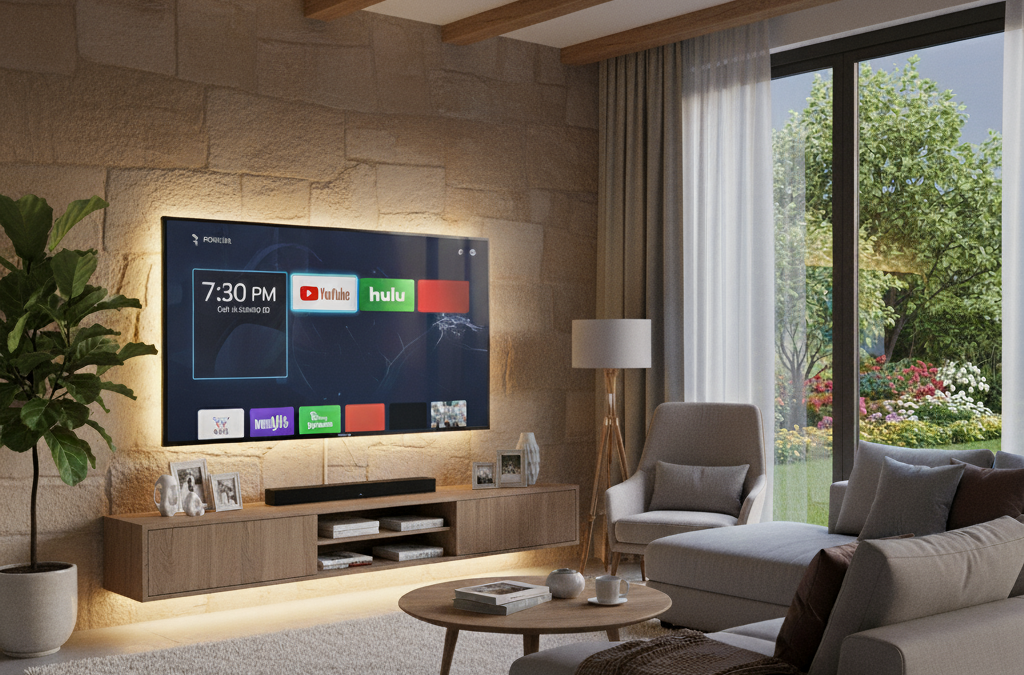
You might have a “Smart TV” in your home and not even know it! Smart TVs are becoming the new normal, but they can be a little confusing at first. They’re more than just a screen; they’re a window to a world of shows, movies, and more—all without extra boxes or gadgets.
Today, we’re going to break down what a Smart TV is, how to use it, and what to do if it’s acting a little finicky. Let’s get “smarter” about your TV! 🤓
What is a Smart TV? 🤔
In the simplest terms, a Smart TV is a television that connects to the internet. Think of it like a giant smartphone with a built-in remote. This connection lets you watch shows and movies from services like Netflix, Hulu, YouTube, and Amazon Prime Video directly on your TV.
The big difference is: A regular TV only displays content from cable, a DVD player, or a separate device. A Smart TV can do that and connect to the internet to stream content and use apps.
How does it work?
-
The “Home Screen”: When you turn on a Smart TV, you’ll see a home screen with a bunch of app icons, like Netflix, Hulu, and Disney+. This is your main menu.
-
Apps: Just like on your phone, you can open these apps to start watching shows. You’ll need to sign in to your accounts (like Netflix or Hulu) the first time you use them.
-
Wi-Fi: A Smart TV needs to be connected to your home’s Wi-Fi network to work its magic. Alternatively, it can be connected to the internet via a wired Ethernet connection.
🕹️ How to Use Your Smart TV
The remote control for a Smart TV looks a little different than older remotes. It often has a button that looks like a house (🏠) to take you back to the home screen, and dedicated buttons for popular apps like Netflix or YouTube.
Steps to find something to watch:
- Press the “Home” button: This button (usually a house icon) takes you to the TV’s main screen, where you can see all your apps.
- Navigate with the arrow buttons: Use the arrows on your remote to move left, right, up, and down to highlight the app you want to open.
- Press “OK” or “Select”: Once the app is highlighted, press the button in the middle of the arrows to open it.
- Log In: The first time you open a streaming app, you’ll need to enter your email and password. Don’t worry – you only have to do this the first time!
- Start Watching! Once you’re signed in, you can browse through shows and movies just like on a computer or tablet.
Many Smart TVs also have a voice button on the remote (it might look like a microphone 🎤). When you press and hold this button, you can speak a command like “Find movies with Tom Hanks” or “Open Netflix” instead of typing. It’s very handy!
🚨 Common Issues & Simple Fixes
Even the best technology can have hiccups. Here are some simple steps to fix common Smart TV issues.
-
Problem: The picture is “stuck” or an app won’t open.
-
Quick Fix: This is the most common issue. Think of it like your TV’s brain needing a break. Unplug your TV from the wall outlet, wait for 30 seconds, and then plug it back in. This completely reboots the system and solves most problems.
-
-
Problem: The TV won’t connect to Wi-Fi.
-
Quick Fix: Make sure your TV is connected to the correct Wi-Fi network and that you typed the password correctly (it’s case-sensitive!). If it still won’t connect, try unplugging your internet router for 30 seconds and plugging it back in, just like with the TV.
-
-
Problem: The picture looks pixelated (blurry squares).
-
Quick Fix: This is usually a problem with your internet connection. A slow internet connection can’t handle a high-quality video. Try the Wi-Fi fix above, or if possible, use an Ethernet cable to plug your TV directly into your router for a stronger connection.
-
-
Problem: An app is freezing or acting strange.
-
Quick Fix: Try completely closing and reopening the app. If that doesn’t work, you might need to uninstall and reinstall the app. This sounds scary, but it’s just like giving the app a fresh start. You’ll need to sign back in, but it often solves the issue.
-
Smart TVs are a fantastic way to enjoy an ever-expanding library of entertainment from the comfort of your living room. The remote is your key to a whole new world of content, and with a few simple tricks, you can master your new device!
If you run into any snags, remember that our Sharks are always here to help you navigate them! You can schedule an appointment using the button below.
Happy viewing! 🎬🍿