
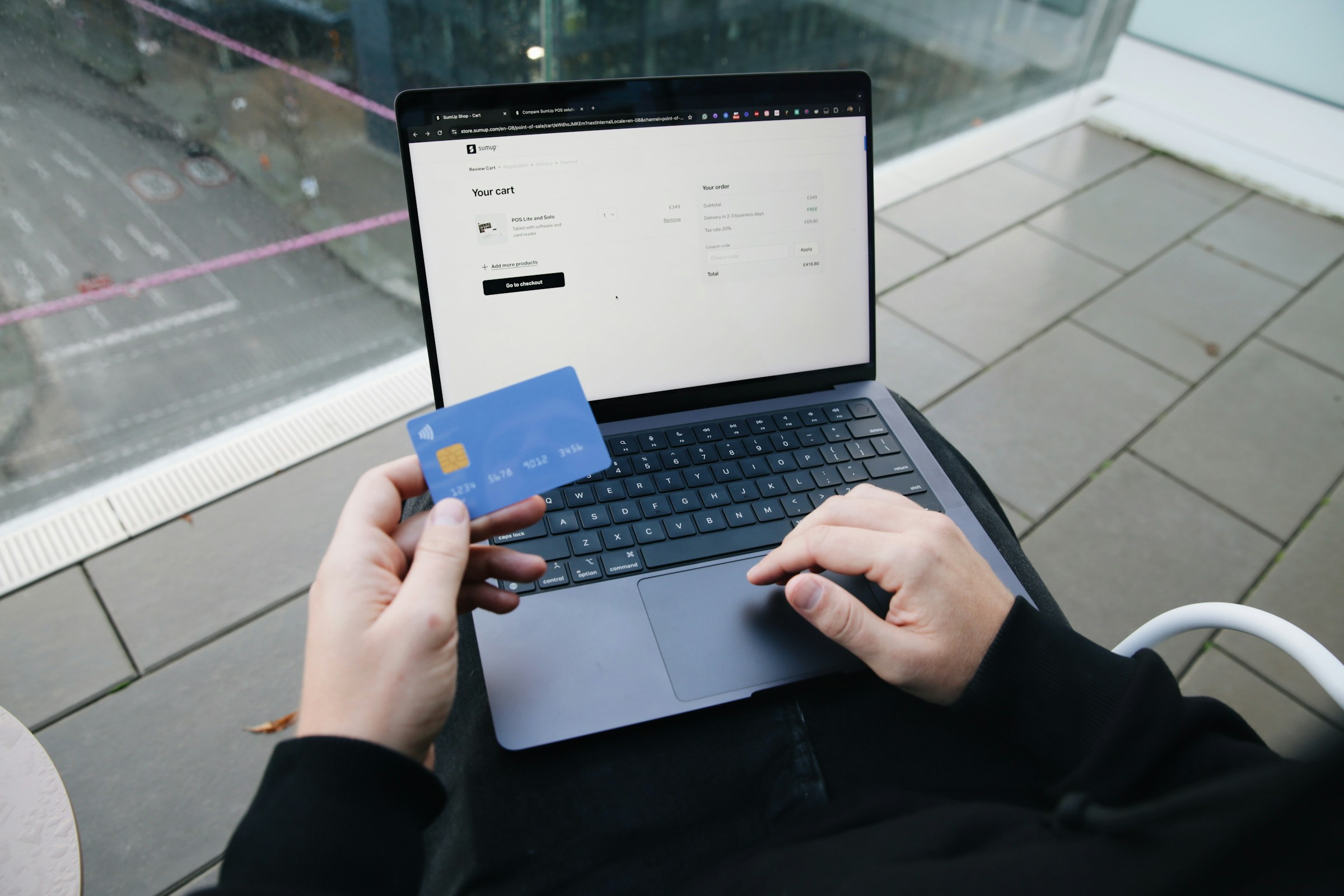
Shopping from the comfort of your armchair is one of the best perks of modern technology. No parking hassles, no heavy bags to carry, and the entire world’s inventory is at your fingertips.
However, being a savvy shopper means more than just finding what you need; it’s about finding the best price, avoiding “hidden” fees, and keeping your information safe. Today, we’re sharing our favorite tips to help you shop with confidence and save some extra change!
Compare Prices Like a Boss 🔍
Just because a website says it’s on “sale” doesn’t mean it’s the lowest price available. Before you click “Buy,” do a quick check!
- Use a Search Engine: Type the name of the product into Google. Click the “Shopping” tab to see a side-by-side comparison of what different stores charge for the exact same item.
- Check the “Big Three”: Before settling, quickly check Amazon, Walmart, and Target. These major retailers often match each other’s prices, but one might offer free shipping while the others don’t.
- Beware of “MSRP”: Many sites show a “Manufacturer’s Suggested Retail Price” crossed out to make the discount look huge. Ignore the “percent off” and focus on the final number at the bottom!
Master the Art of the Coupon 🎫
You don’t need a pair of scissors to clip coupons anymore! There are digital ways to shave money off your total instantly.
- The “Abandon” Trick: If you aren’t in a rush, put the item in your digital shopping cart, log in, and then close the website. Often, the store will email you a “We miss you!” discount code a day or two later to encourage you to finish the purchase.
- Sign Up for Newsletters: Many stores offer 10% or 15% off your first order just for joining their email list. You can always “Unsubscribe” (as we learned in our cleaning newsletter!) once the package arrives.
- Look for the “Promo Code” Box: At checkout, there is almost always a small box for a discount code. A quick search for “[Store Name] coupon code” in Google can sometimes save you 10% or more.
Read Between the Lines of Reviews ⭐
Reviews are helpful, but they can sometimes be misleading. Here is how to spot the truth:
- Sort by “Most Recent”: A product might have 5 stars from two years ago but has recently changed its quality. Always check what people are saying now.
- Look for “Verified Purchase”: This tag means the person actually bought the item from that site and isn’t just a random (or paid!) commenter.
- Read the 3-Star Reviews: These are often the most honest. They aren’t “super fans” or “haters”—they usually offer a balanced view of the pros and cons.
Avoid Shipping Surprises 🚚
The price on the screen isn’t always the price you pay. Shipping costs can turn a “great deal” into an expensive one.
- The “Free Shipping” Threshold: Many sites offer free shipping if you spend a certain amount (like $50). If you are at $45, it might be cheaper to add a small $5 item (like socks or a greeting card) than to pay the $10 shipping fee!
- Check the Return Policy: Before you buy, make sure you know who pays for the shipping if you need to send it back. Many stores offer “Free Returns,” which is a huge bonus if you’re buying clothes or shoes.
Stay Safe at Checkout 🔒
Safety is the most important part of being a savvy shopper.
- Check for the Padlock: Never enter your credit card information on a site that doesn’t have the little padlock symbol (🔒) in the web address bar.
- Use Your Mobile Wallet: As we discussed recently, using Apple Pay or Google Pay is safer than entering your card number directly into a new website (read that guide here).
- Avoid Public Wi-Fi: Wait until you are on your secure home network to do your shopping. Public Wi-Fi (like at a cafe or airport) is not the place to enter financial details.
Online shopping should be a convenience, not a headache. By taking an extra minute to compare and check for safety, you can make sure you’re getting the best deal every time!
If you’d like help setting up an account at your favorite store or want a guided tour of how to safely check out, our Sharks are always here to help!