
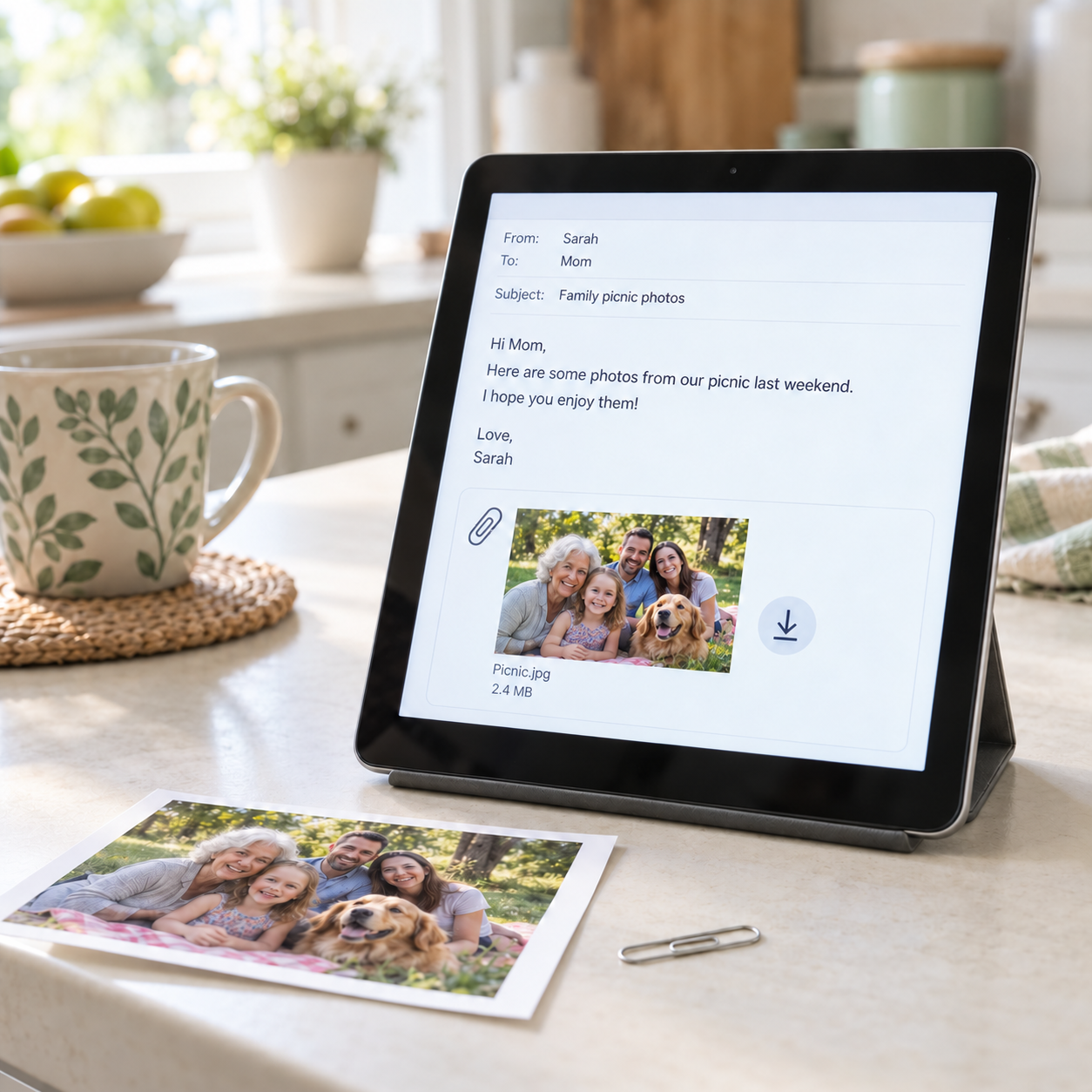
Someone emails you a photo, a form, or tickets for an upcoming event. You open the message, click a few things, and then wonder: “Where did it go?”
We’ve all been there! Today, we’re taking the mystery out of email attachments—how to recognize them, open them, and find them again later.
What Is an Attachment? 📎
An attachment is a file sent along with an email. It might be a photograph, a document, or a PDF—a common type of file used for forms, receipts, and tickets.
Look for a paperclip symbol beside the email or a file name or small picture inside the message. These are clues that something came along for the ride!
Think of the email as an envelope and the attachment as the photograph or paperwork tucked inside.
Opening vs. Downloading: What’s the Difference? 📂
Opening or previewing lets you look at the attachment. You may be able to read a document or view a photo without leaving your email.
Downloading saves a copy to your device so you can find it outside your email later. Look for an option labeled Download or an icon shaped like a downward-pointing arrow.
Some email apps download a file as part of opening it, so the wording and behavior can vary. Being able to see a file does not always mean you have saved a copy where you can easily find it.
Where Did My File Go? 🔎
If you downloaded an attachment and it seems to have vanished, try these places:
- On a computer: Check the Downloads folder. Many downloaded files land there unless you choose another location.
- On a phone or tablet: Look in the app called Files or My Files, then check for a Downloads folder.
- For a photograph (on a phone or tablet): If you chose Save Image or Save to Photos, check your Photos or Gallery app instead.
Still cannot find it? Go back to the original email and check the attachment’s name. Searching your device for that name may help you track it down.
There is usually no need to download it over and over—that can leave you with several copies of the same file!
Give Important Files a Home 🏠
Once you find a file you want to keep, move it to a folder that makes sense to you, such as Travel, Medical Paperwork, or Family Photos.
You can also give it a more recognizable name. “November Appointment Instructions” will be easier to spot later than a long string of numbers!
If you are unsure how to move or rename a file, ask a trusted friend, family member, or Shark to walk you through it.
A Quick Safety Check Before You Open 🛡️
Were you expecting this attachment? Does the message make sense?
Even if you recognize the sender’s name, pause before opening an unexpected file—especially if the message pressures you to act quickly.
Contact the sender using a phone number you already know (not the one in the email) to check that they sent it. If an attachment asks you to install something or change security settings just to view it, stop and ask a trusted helper.
A little practice can turn “Where did it go?” into “I know right where to look!”
If you would like a hand opening an attachment, finding a downloaded file, or organizing your documents, our Sharks are ready to dive in! You can book an appointment with a Shark today.