
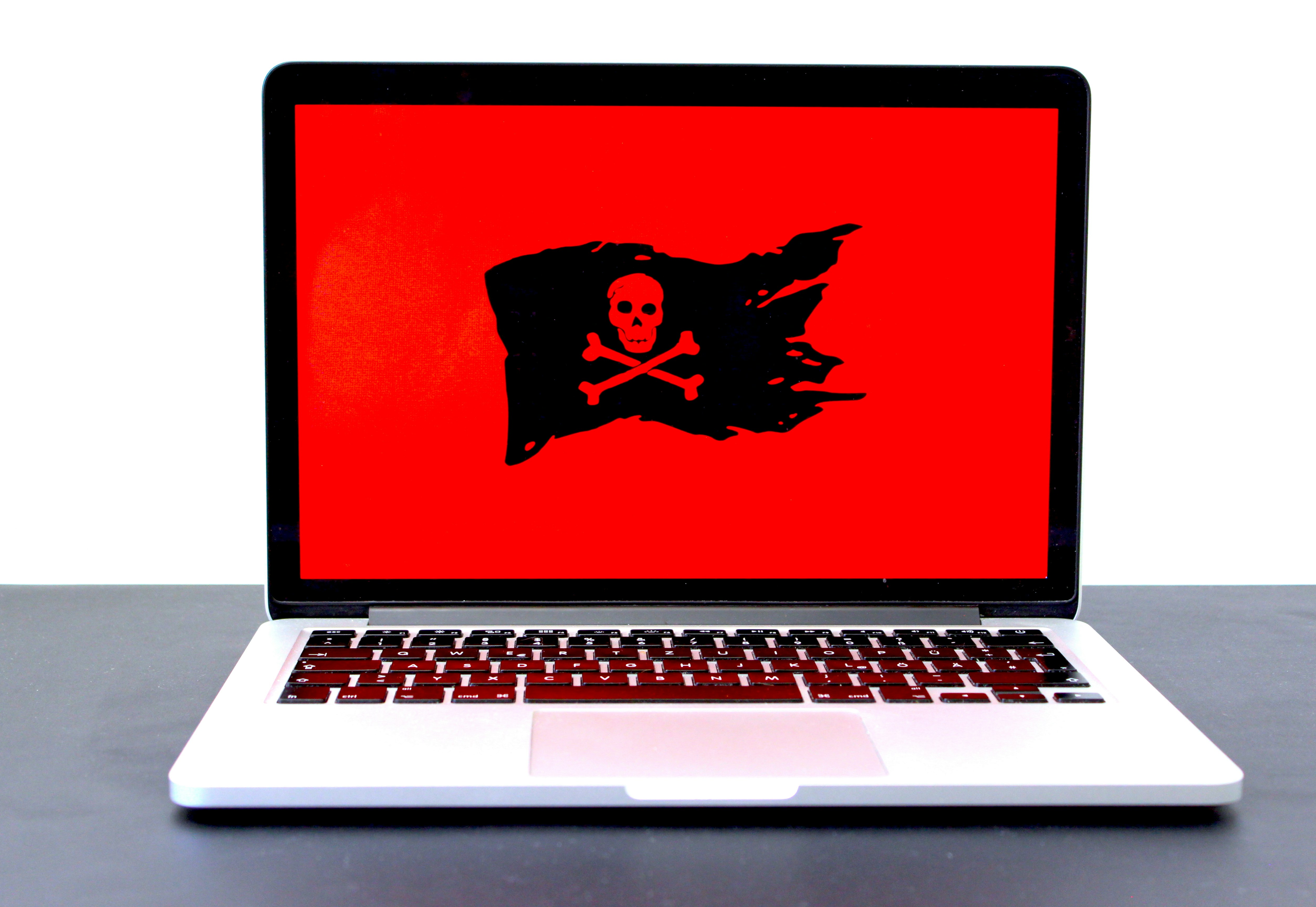
We often hear scary terms like “virus” or “hacker” in the news, but the real threat behind them is malware.
Malware is just the technical word for any bad software designed to sneak onto your devices (computers, phones, tablets, etc.) and cause trouble. It’s like a bad cold for your technology! The good news is that understanding what malware does and how to spot it is your best defense.
Let’s learn how to keep your digital life safe and healthy! 🩺💻
What Exactly is Malware? 🤔
Malware is the umbrella term for any malicious software. It includes many different types of digital troublemakers:
|
Type |
Explanation |
|
Viruses |
Work like real-life viruses: they attach to a file, disable functions, and spread quickly, often through thumb drives or downloads. |
|
Trojans |
Look like normal, helpful programs or apps, but secretly run harmful code in the background to spy on you. |
|
Ransomware |
It holds your computer “captive” by restricting access until you pay a ransom. It can also be combined with other types of malware. |
|
Spyware |
Acts by stealth, secretly spying on your activity, collecting your keystrokes (passwords!), and harvesting data. |
|
Adware |
Automatically covers your web browser or computer in unwanted, unsolicited advertisements. Generally, they are more obnoxious than malicious. |
⚠️ How to Spot the Warning Signs
Malware rarely stays hidden for long. If your computer is suddenly acting strangely, it’s often a sign that something is wrong. Pay attention to these telltale signs:
- Pop-Ups Galore: You start seeing advertisements or pop-up windows appearing over and over, even on places that normally don’t have them.
- A Slowdown: Your computer suddenly starts running much slower than usual. Opening programs or browsing the internet takes forever.
- Your Homepage Changed: When you open your web browser, the main starting page is different, or weird new tabs open suddenly.
- Mystery Programs: You notice new browser add-ons or toolbars installed that you don’t remember putting there.
- Locked Out: In the case of ransomware, you may find yourself completely locked out of your computer, with a message demanding payment. Often, the message will ask you to call a phone number. (If this happens, don’t call them!)
🛑 Your Simple Guide to Prevention
The best way to deal with malware is to prevent it from getting on your device in the first place!
- Arm Yourself with Antimalware: The single best way to protect your computer is to install and regularly run a good antivirus/antimalware program. There are many great, free versions available that provide solid security. Malwarebytes is our favorite free option.
- Think Before You Click: Be cautious about everything you click online:
- Emails: Never click on links or download attachments from emails sent by people you don’t know, or that look suspicious (even if they claim to be from your bank or a friend!).
- Websites: Don’t visit untrusted or unsecured sites (look for a padlock 🔒 next to the web address, not just the “http://”).
- Downloads: Don’t download files from “sketchy” or questionable sources. These files often contain malware.
- Keep Software Updated: Make sure your computer’s operating system (Windows or Mac) and your antivirus program are always up to date. These updates often contain vital fixes that close the doors hackers use to sneak in.
Staying safe online requires vigilance, but a few smart habits go a long way in keeping your digital life secure!
If you run into any snags or suspect you might have a virus, remember that our Sharks are always here to help you navigate it. You can schedule an appointment using the button below.